¶ Prerequisties
- Train Sim World PC Editor
- Familiarity with a command line interface (all commands in this guide are in Windows Command Shell)
In case you are using the Train Sim World 4 PC Editor go over the Train Sim World 4 PC Editor Preperations section first, then continue with the below instructions as normal.
¶ Generate Release AssetRegistry.bin
If we were to try and cook right now the PC Editor would also try to cook already cooked files from mounted game pak-files or extracted cooked files, which results in the cook action getting stuck indefinitely. To midigate this issue we generate a AssetRegistry.bin file for a "1.0 Release". This file is used to create Patches and DLC without having to cook the entire project again normally, here we're going to simply use this file to skip already cooked files.
This needs to be re-done everytime you install new content which you want to keep active while cooking
¶ Preperation
- Remove all mods from your game's DLC folder
- Remove all custom plugins from your Editor's
\TS2Prototype\Plugins\folder and sub-folders (otherwise these would unwantingly also be skipped during cooking attempts)
¶ Generating
- Execute the following command in the
TrainSimWorld5MODfolderTS2Prototype\Binaries\Win64\TrainSimWorldPublicEditor-Cmd.exe TS2Prototype -Run=cook -TargetPlatform=WindowsNoEditor -CookOnTheFly -Iterate -BasedOnReleaseVersion=1.0 -DLCIncludeEngineContent -dlcName=none,none - Wait around 5 minutes (the output will sit at
LogCook: Display: Creating asset registryfor multiple minutes) - Upon reaching the line
LogCookCommandlet: Display: GC...the command will get stuck indefinitely. Press <kbd>Ctrl</kbd>+<kbd>C</kbd> to exit
¶ Finalizing
- Copy the generated
\TrainSimWorld5MOD\TS2Prototype\Saved\Cooked\WindowsNoEditor\TS2Prototype\AssetRegistry.binto\TrainSimWorld5MOD\TS2Prototype\Releases\1.0\WindowsNoEditor\AssetRegistry.bin(create said folder structure if missing) - Move any folders you moved out before back
¶ Cooking
- Remove any mods from your game's DLC folder which contain files you are about to cook (for example your own mod of which you are cooking a new version)
- Execute the following command in the
TrainSimWorld5MODfolder. Replace[PLUGINNAME]in the command with your plugin's name beforehand. Remove the "DLC\" from the command in case your plugin is not in the DLC folder in the Editor's folder structure.TS2Prototype\Binaries\Win64\TrainSimWorldPublicEditor-Cmd.exe TS2Prototype -Run=Cook -TargetPlatform=WindowsNoEditor -BasedOnReleaseVersion=1.0 -SkipSoftReferences -dlcname=[PLUGINNAME],DLC\[PLUGINNAME]
The cooked files are outputted under \TrainSimWorld5MOD\TS2Prototype\Plugins\DLC\[PLUGINNAME]\Saved\Cooked\WindowsNoEditor\. Paking is done as per usual.
¶ Troubleshooting
¶ Stuck at Cooked pages 252528 Packages Remain 63 Total 252591
- Ensure that no mod installed in your game's DLC folder is conflicting with the cooking process
- Ensure that the generated Release
AssetRegistry.binis up to date and has been moved to the\TrainSimWorld5MOD\TS2Prototype\Releases\1.0\WindowsNoEditor\folder
¶ Crash Reporter opening with error LongPackageNameToFilename failed to convert...
- Create the plugin mentioned in the error either through the in-editor 'New Plugin' function as a 'Content Only' plugin or manually if you know how. The plugin does not require any content to be added to it.
¶ Crash Reporter opening with error Assertion failed: bSucceeded [File: .../CookOnTheFlyServer.cpp] [Line: 6966]
- Ensure that the generated Release
AssetRegistry.binhas been moved to the\TrainSimWorld5MOD\TS2Prototype\Releases\1.0\WindowsNoEditor\folder
¶ Command instantly exiting without error
- Ensure that the
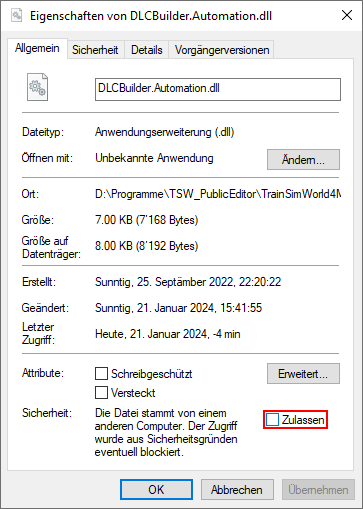
\TrainSimWorld4MOD\Engine\Binaries\DotNET\AutomationScripts\DLCBuilder.Automation.dllis unblocked
¶ Train Sim World 4 PC Editor Preperations
Download the Editor cooking patch from trainsim.cz and extract the TSW4-cooking.zip into the root directory TrainSimWorld4MOD of the PC Editor. You should be promted to overwrite files to which you want to agree.
In Windows Explorer navigate to the \TrainSimWorld4MOD\Engine\Binaries\DotNET\AutomationScripts\DLCBuilder.Automation.dll file, right-click it and open the Properties. Here you need to unblock the execution of this DLL, as Windows blocks such DLLs downloaded from the internet by default.
We will not be using any of the batch files included in the patch and instead executing similar actions manually.
Replace TrainSimWorld5Mod with TrainSimWorld4Mod in the remaining instructions when using the TSW 4 PC Editor.